Offline survival computer: build your Project NOMAD (and power it off-grid)
By Daniel Vega · Updated: 2026-06-06 · Methodology
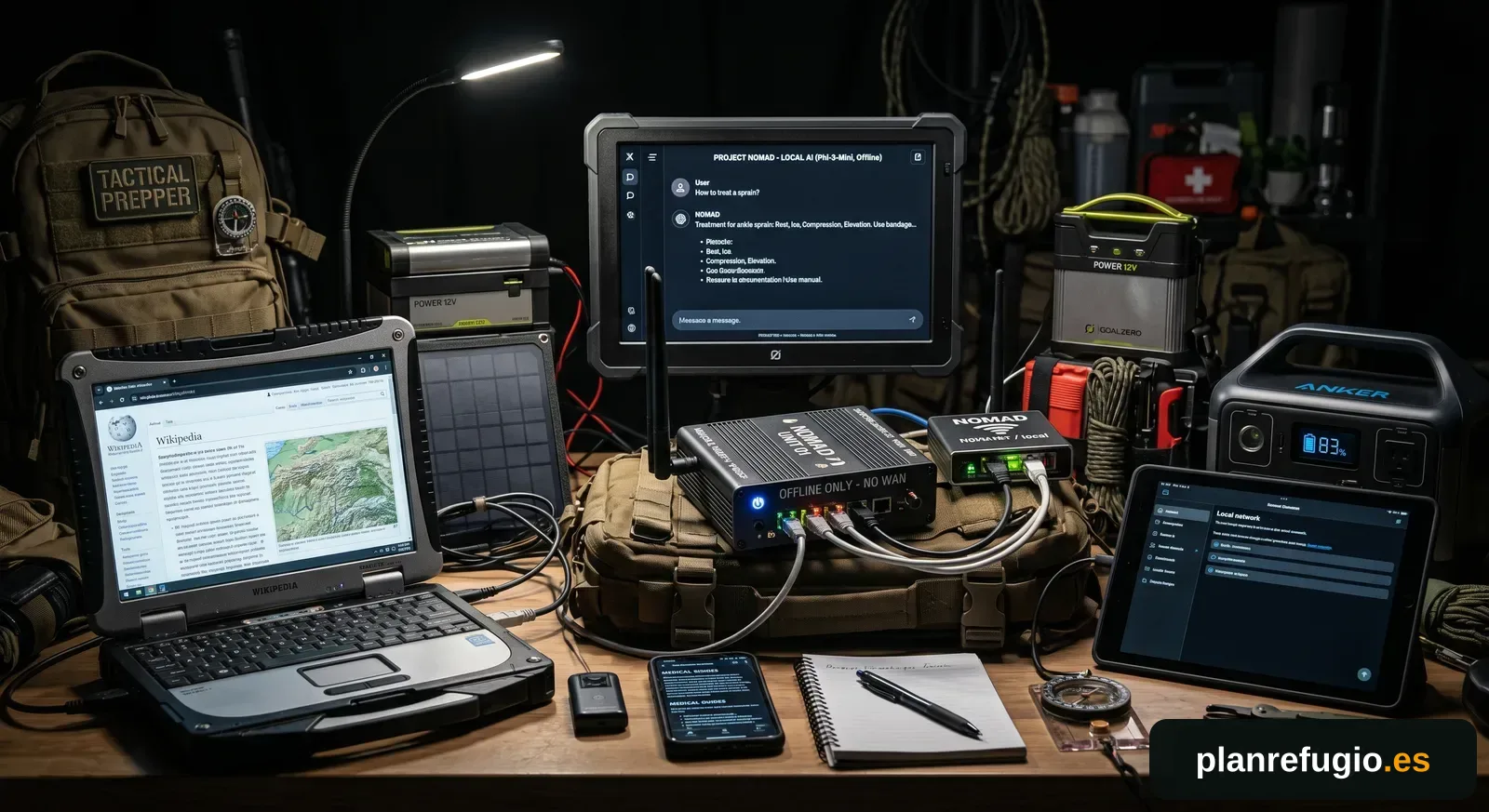
At EmergencyKitLab Canada we test things before recommending them, and an offline survival computer is one of the most useful things you can have for a long power outage or losing internet: all the information you need plus an AI that runs offline. The best open-source option today is Project NOMAD (by Crosstalk Solutions, Apache-2.0). This EmergencyKitLab guide covers what it is, the three builds by budget and—what almost nobody explains—how to power it when the grid is down.
What if I’m not technical at all? Relax
You don’t need to know how to code. Think of NOMAD as a box holding all of Wikipedia, maps, medical guides and a ChatGPT-style assistant that works even with no internet and no signal. You install it by copying and pasting a single line (below), then use everything from your browser like any website. The rest —Docker, local AI, RAG— are just the names of the parts; the installer sets them up for you. And if you get stuck, there’s a community to help.
What Project NOMAD is
NOMAD is not a gadget, it is software: a web "command center" that uses Docker to orchestrate a set of tools that work offline—a local AI chat (with Ollama) that can search across your own documents (RAG), knowledge bases, maps and more. It installs on a normal computer running Ubuntu (x86-64 architecture; not a Raspberry Pi) and you use it from your browser. Because it is open-source, building it costs you only the hardware.
What a NOMAD includes (and why it is so useful without internet)
From the dashboard you install, with one click, tools that work 100% offline. The ones that truly make a difference in an emergency:
- Kiwix — all of Wikipedia, medical references, survival guides and books, offline. This is the most valuable part: medicine and knowledge when the network is down.
- Local AI chat (Ollama + RAG with Qdrant) — an assistant that answers and searches across your documents (PDFs, manuals) without sending anything to the internet.
- ProtoMaps — downloadable regional maps with offline search and navigation.
- Kolibri — Khan Academy courses with progress tracking, handy if there are kids at home.
- CyberChef and FlatNotes — local data utilities and note-taking.
- Built-in benchmark — scores your hardware and compares it with the community.
The AI is optional: the offline knowledge (Kiwix, maps) already justifies the build on its own, and it runs on modest hardware. The AI is what demands muscle.
What NOMAD looks like inside
Screenshots of the real Project NOMAD panel, running fully offline:
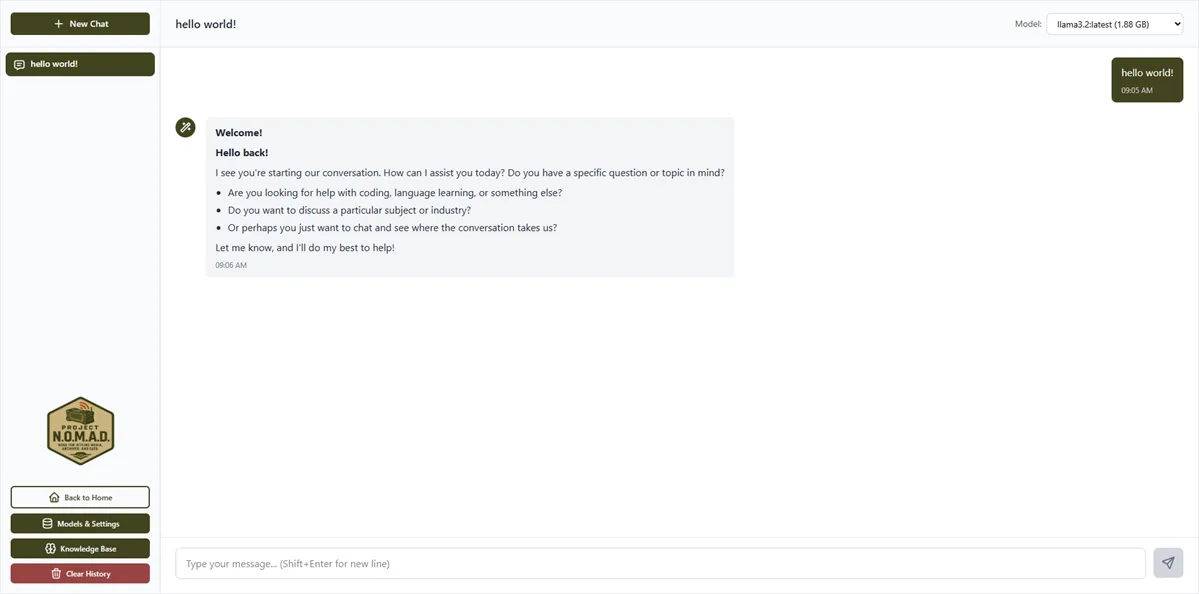
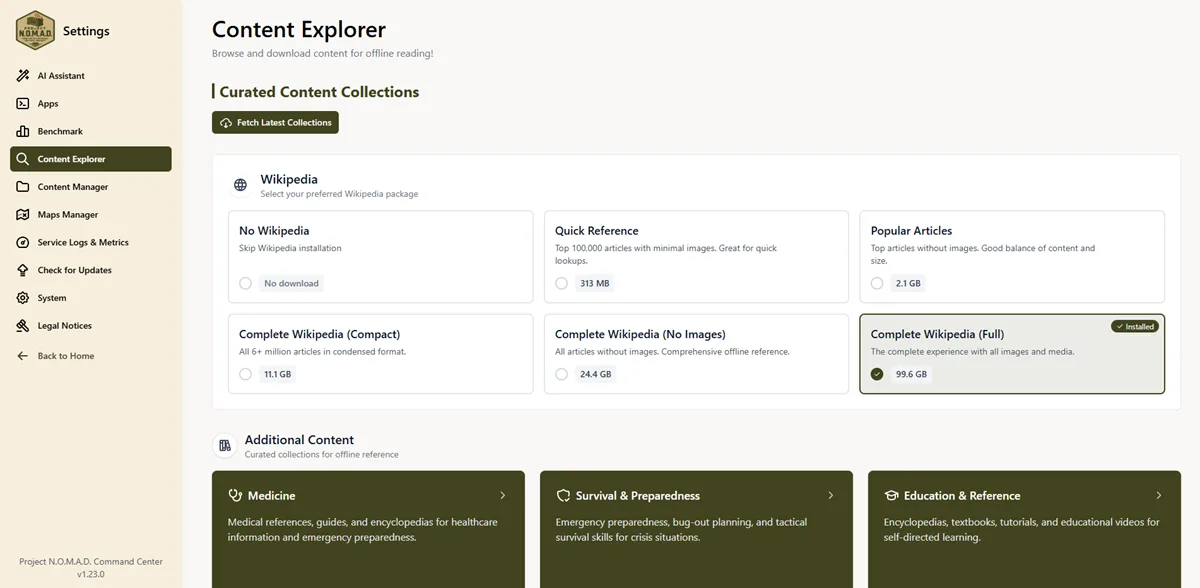
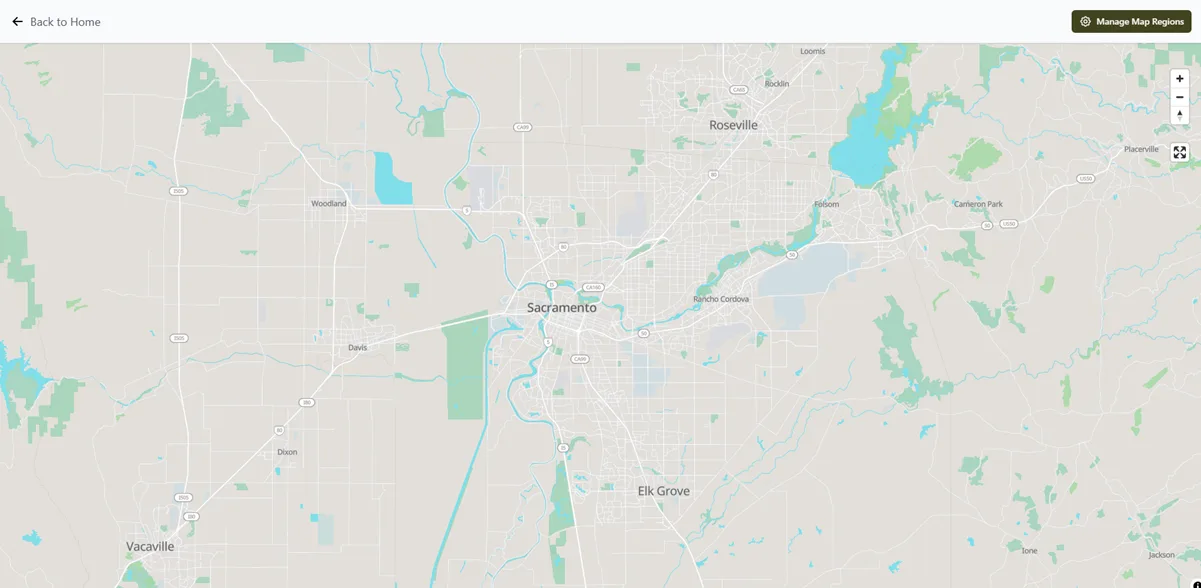
Screenshots: projectnomad.us (Crosstalk Solutions).
The 3 EmergencyKitLab Canada builds by budget
Which AI model fits each tier (rule of thumb: a Q4-quantized model takes ~0.6 GB per 1,000M parameters): with 16 GB you run 7-8B models comfortably; with 32 GB, 13-14B and you brush up against 30B; for 70B you need plenty of VRAM/RAM (powerful build). Without a dedicated GPU the AI is slow but works; with a GPU, speed jumps to dozens or hundreds of tokens per second (Crosstalk cites 100-800+ t/s in its hardware guide, depending on the model).
Hardware changes fast, so we link to Amazon searches by specification (not to a specific model that might be sold out tomorrow).
Basic · CAD $230-450
Start cheap. Tools and offline knowledge; small AI or none.
A refurbished business mini PC (Dell OptiPlex Micro, Lenovo ThinkCentre Tiny or HP EliteDesk Mini).
see on AmazonWhat to look for when buying:
- Intel i5/i7 processor, 8th generation or newer (or a Ryzen 5)
- 16-32 GB of RAM
- 500 GB SSD drive
Refurbished business machines are very reliable and usually come with a warranty; that's why they're so cheap.
Recommended · CAD $750-1,200
The most popular. Decent local AI (powerful iGPU), all the offline knowledge.
A new Minisforum or Beelink mini PC with a Ryzen 7 or 9.
see on AmazonWhat to look for when buying:
- Ryzen 7/9 with integrated Radeon 780M or 890M graphics (no separate graphics card needed)
- 32 GB of RAM
- 1 TB NVMe drive
Powerful · CAD $1,500+
Large, fast AI (100-800+ tokens/s). For those who want the most capable model offline.
A desktop (or mini PC with an external GPU enclosure) with a dedicated graphics card.
see on AmazonWhat to look for when buying:
- NVIDIA RTX 3060 graphics card with 12 GB or better
- 32-64 GB of RAM
- 1-2 TB NVMe drive
How to power it off-grid (what the official guide leaves out)
An offline survival computer is no use if it runs out of battery during a power outage. Quick rule from EmergencyKitLab Canada: look at the power draw and multiply it by the hours you want to last. A mini PC with integrated graphics pulls ~15-65 W; with a dedicated GPU, 150-300 W. So for the recommended build (~30 W) a 288 Wh station gives ~8-9 hours; with a GPU you need 1,000 Wh or more. Work out your exact case in the energy calculator and top it up with a solar panel.
Leave some margin: real runtime is ~15-20% lower than the theoretical figure (Wh ÷ W) because the station's inverter loses some energy converting to AC, and the battery's usable capacity is not 100%. That is why we give conservative numbers and why it pays to size generously. And a tip: if the device allows it, power it over USB-C PD or 12 V DC straight from the station instead of through the AC outlet—you skip the inverter loss.
-
Compact portable station (short backup)
Basic build (~30 W): 1-3 h of backup. Compact and cheap.
see on Amazon
EmergencyKitLab Canada participates in the Amazon Associates Program: if you buy through these links we may earn a commission at no cost to you. Prices are indicative. Sources: Public Safety Canada (GetPrepared.gc.ca).
Prices are indicative and may vary on Amazon.
Quick install
The full official install is at projectnomad.us/install. Here is the 3-step summary:
- Install Ubuntu on a mini PC. If you are not technical, use Ubuntu Desktop 24.04 LTS (it has a desktop like Windows/Mac). If the PC does not come with it: download it (free), write it to a USB stick with Rufus (Windows) or balenaEtcher (Mac), and boot the PC from that USB (when it powers on, press F12, Esc or Del to pick the USB). You only need internet during the install; after that it runs with no network. This is the most technical bit of all, and you only do it once. Heads-up: x86 bare-metal only — no Proxmox/virtual machines, no WSL2, no macOS.
- Open a terminal and paste the command below (it will ask for your password). It downloads and runs the official installer, which sets everything up with Docker (Kiwix, Ollama, etc.). It takes a while; leave ~250 GB free if you want the AI and all the knowledge.
- When it finishes, open
http://localhost:8080in the browser on the machine itself, orhttp://THE_DEVICE_IP:8080from another device on your network (to find the IP: check your router or typeip ain the terminal). From the dashboard, download the packs you want (Wikipedia, maps, Khan Academy…) and the AI models.
sudo apt-get update && sudo apt-get install -y curl && curl -fsSL https://raw.githubusercontent.com/Crosstalk-Solutions/project-nomad/refs/heads/main/install/install_nomad.sh -o install_nomad.sh && sudo bash install_nomad.shOfficial step-by-step guide: projectnomad.us/install · recommended hardware: projectnomad.us/hardware · code: Crosstalk-Solutions/project-nomad · community: Discord. NOMAD has no built-in authentication: do not expose it to the internet.
Facts from a real install
- All of Wikipedia + detailed world maps ≈ 250 GB: a 1 TB SSD is plenty (Khan Academy and hundreds of resources fit too).
- Project reference hardware: a Minisforum MS01 mini PC (x86).
- x86 bare-metal only: not supported on Proxmox/VMs, WSL2 or macOS.
Frequently asked questions
- What exactly is Project NOMAD?
- It is open-source software (Apache-2.0) that turns a normal computer into an offline survival "command center": a dashboard that uses Docker to orchestrate a set of tools and information that work WITHOUT internet—local AI chat (Ollama) with search across your documents (RAG), knowledge bases, maps and more. It is developed by Crosstalk Solutions.
- Do I need a Raspberry Pi?
- No. NOMAD is designed for x86-64 (a mini PC or desktop running Ubuntu), not for the Raspberry Pi officially (ARM support is on its roadmap). For the AI, the more power and video memory, the better.
- How much battery do I need to use it during a power outage?
- It depends on the draw: a mini PC with integrated graphics pulls ~15-65 W, so a 288 Wh station gives you ~8-9 hours at 30 W. With a dedicated GPU (150-300 W) you need a station of 1,000 Wh or more. Work out your case with the EmergencyKitLab Canada energy calculator and top it up with a solar panel.
- Is it worth building or should I buy a sealed kit?
- If you already have a mini PC or desktop, building NOMAD is free (the software is open-source) and far more capable than a sealed kit. If you are starting from scratch, the recommended build (~CAD $750-1,200) is the sweet spot. What truly makes a difference in an emergency is not the computer, but having tested it beforehand and being able to power it off-grid.